
Last updated on April 21, 2026
How Does an Admin Assign a Substitute Approver?
When an Approver forgets to nominate a substitute (or nominates the wrong person), an Admin can step in and set the Substitute Approver on that Approver's scheduled leave — from the Users page, straight on the Approver's own profile. It's the same UI the Approver would have used, just reached from an admin route.
When an Admin Needs to Step In
The Substitute Approver field lives on the leave request itself. Normally, the Approver picks a substitute when they submit their own leave — see How Does an Approver Assign a Substitute Approver? for that path.
Admins typically need to step in when:
Assign a Substitute Approver as an Admin
The flow works on the online dashboard and requires Admin-level access. Every step runs against the scheduled leave belonging to the Approver who's going out.
- Sign in at app.vacationtracker.io.
- In the left-hand menu, under Team & Approval Flows, click Users.
- Use the search field at the top of the Users table to find the Approver whose leave you need to update. Click their name to open their profile.
- On the profile page, switch to the Leaves tab.
- In the Scheduled Leaves section, find the upcoming leave where the Substitute Approver needs to be set or changed, and click Edit on that row.
- In the Edit Leave form, update the Substitute Approver field — pick the person who should cover approvals while the Approver is away.
- Click Edit Leave at the bottom to save your changes.
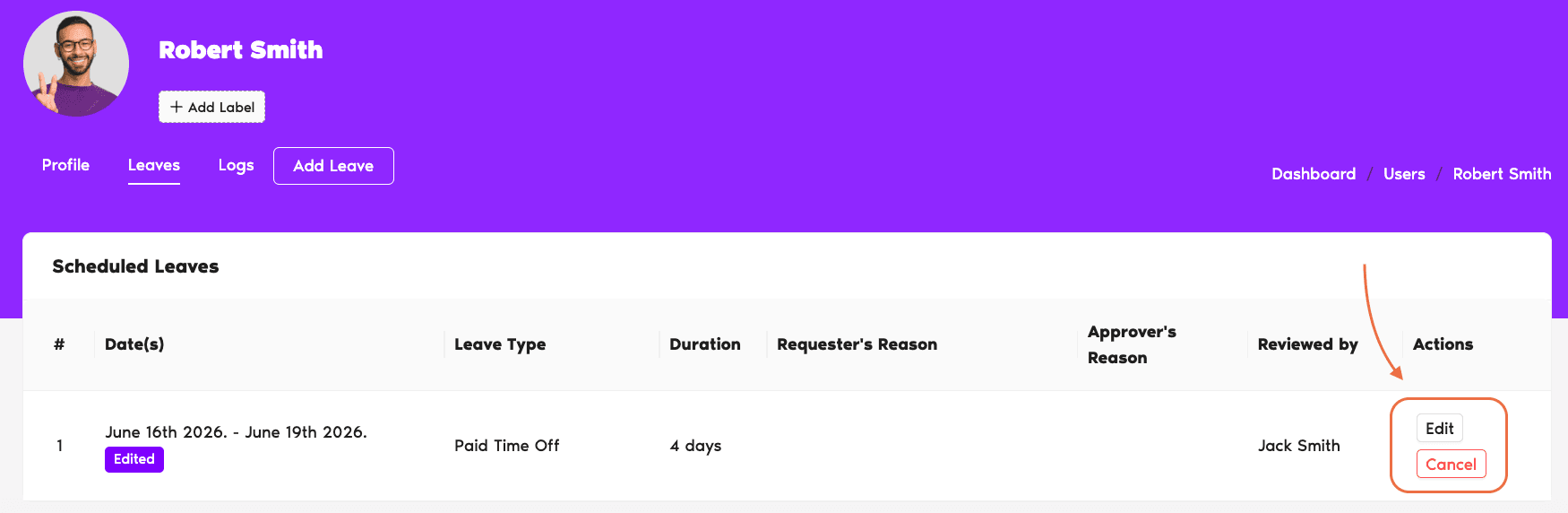
Finding the Right Leave to Edit
The Substitute is attached to the specific leave request, so which leave you edit matters.
Single Approver in the Department
Open that Approver's profile and edit their scheduled leave. The Substitute Approver field is visible on the form because there's no one else to route approvals to during their window.
Multiple Approvers in the Department
Find the leave submitted by the last Approver to request time off — that's the request the system tied the Substitute to. If you open the wrong Approver's leave, the Substitute Approver field won't be present because the system didn't surface it to them.
What "Add Leave" Doesn't Do
The Add Leave button on a user's profile opens a different form: "Use this form if you are adding leave for another user, or if you're adding leave for yourself that does not require approval." This Admin-side Add Leave flow skips the approval pipeline entirely — it only has Leave Type, Start and End Date, and Reason fields, and doesn't include a Substitute Approver selector.
If you want the Substitute Approver attached, the leave has to go through the normal request flow (either the Approver submits their own leave request, or you edit their existing scheduled leave).
Common Questions
Two common reasons. First, the leave may be in the past — Substitute Approver only applies to upcoming coverage, so the Edit form hides it once the dates are behind you. Second, the Department has more than one Approver, so the system didn't surface the field on this particular request. Check the original request submitted by the Approver with the latest request date in that Department.
No. The Add Leave form on a user's profile is designed for posting a leave directly to someone's record without approval routing — it asks only for Leave Type, Start and End Date, and Reason. To get a Substitute Approver in place, either the Approver needs to submit the leave themselves (so the field surfaces during request creation), or an Admin needs to edit the existing scheduled leave afterwards.
No. The role is narrowly scoped: approve or deny incoming leave requests for the Approver's window. The substitute doesn't gain any broader permissions, can't change configurations, and their ability to act ends when the Approver's leave ends.
 Book a Call