
Last updated on February 9, 2026
How Do I Edit My Pending or Upcoming Leave?
If your leave hasn't started yet — whether pending approval or already approved — you can change the dates, hours, or reason yourself from the Dashboard. The Leave Type itself is locked once a request is created; for that, cancel and submit a new one.
Steps (Dashboard)
- Sign in at app.vacationtracker.io.
- On the Dashboard, find your leave in Pending Requests (if it's still awaiting approval) or Scheduled Leaves (if it's already approved).
- Click Edit on that leave's card.
- Change the dates, hours (for hourly / half-day leaves), or reason as needed. Leave Type is read-only on the Edit form — you can't switch a Vacation request into a Sick Day.
- Click Save.
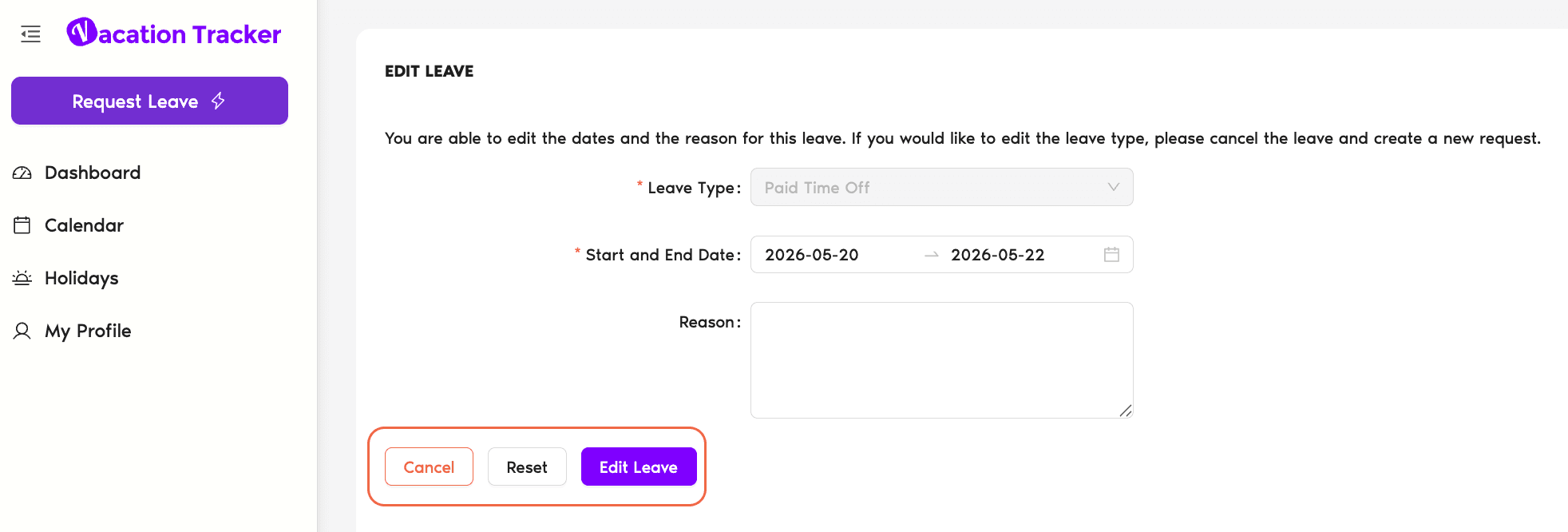
If the leave was already approved and you change its dates, the request goes back to pending and your Approver(s) need to re-approve it. The reminder schedule restarts from the beginning.
Common Questions
Each leave is bound to the Leave Type it was created with — the balance came from that Type's quota, the approval flow depends on it, and changing Leave Type mid-request would invalidate all of that. To switch Leave Type, cancel the existing request and submit a new one with the correct Type.
Depends on what you change. Changing the dates sends the request back to pending — your Approver(s) need to re-approve. Changing just the reason typically doesn't re-trigger approval. The exact behavior is logged on the leave record so you can see whether re-approval is needed.
If the edit puts the request back into pending state, the reminder cycle restarts from step 1 — your Approver gets the first reminder on the next business day after the edit. So a tiny edit can give the request another 7 business days of life before auto-expiring.
 Book a Call