Department settings drift over time — a team gets renamed, approval flow changes, new users join, or you want to nest one team under another. Every piece of that sits in a single Edit Department form. Admins open it from the Departments page and update whatever needs updating in one save.
Open the Edit Department Form
Every editable field lives in one form. You only need to reach it once to change multiple things at the same save.
In the left-hand menu, under Team & Approval Flows, click Departments.
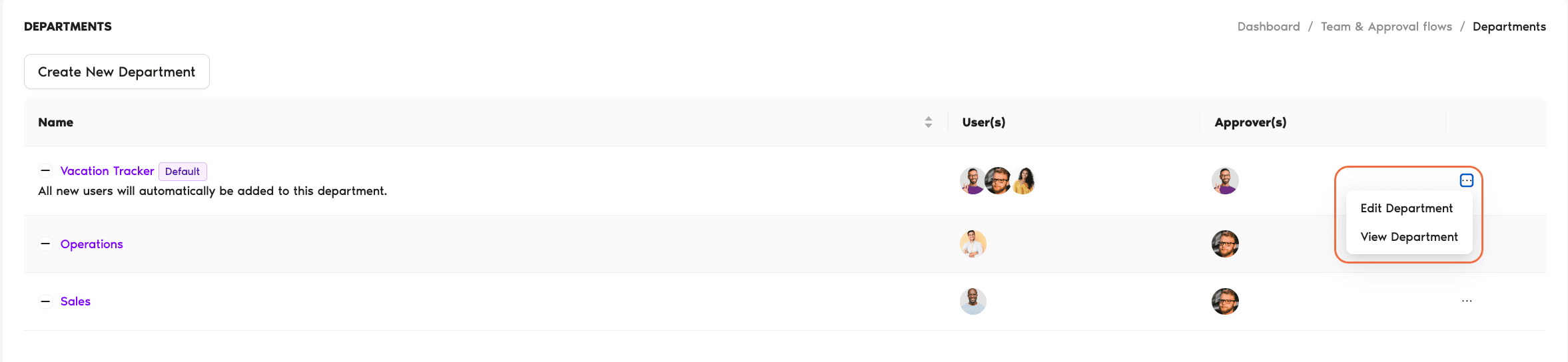
Locate the Department you want to change. On the right end of its row, click the three-dot menu (...) and choose Edit Department.
Adjust any of the sections below. You can change one field or all of them — the Update button at the bottom commits everything at once.
Click Update Department to save. Use Cancel to exit without saving.
What You Can Edit
The form is grouped into five sections. Each one controls a different aspect of the Department.
1. Department Settings
This is the top of the form.
Name — the Department's display name. Users see this in the Departments list, on profile pages, and anywhere approval flow is shown.
Users (optional) — the multi-value chip field listing people assigned to this Department. Type to search for a user and click to add them; click the × on a chip to remove someone. The helper text under the section header notes you can configure the Department first and add users later if it's easier.
2. Approval Flow
This section controls who approves leave for this Department and how their decisions flow.
Approval Flow Type — Single-level Approval (default, all plans) or Multi-level Approval (Complete plan only). Single-level means any one Approver can sign off. Multi-level moves a request through each level in sequence; any one Approver at a given level moves it forward.
Approver(s) — the chip field where you add or remove the people approving requests for this Department. An Approver can be assigned to multiple Departments.
Notify Watcher(s) After Final Approval (optional) — email addresses that get a heads-up once a request is fully approved. Useful for HR, payroll, or a shared inbox that tracks approved time off. Separate multiple addresses with commas or spaces.
How the two flow types behave
Single-level Approval needs one sign-off — any one of the people on the Approver(s) field can approve or deny, and whoever clicks first moves the request along. Multi-level Approval (Complete plan) routes the request through each configured level in order; within a level, any one Approver can move it on to the next. The same person can sit on multiple Departments' Approver fields, so you don't need to clone people across teams.
3. Leave Request Expiration
Controls how long pending requests stay open before they expire.
Keep future pending requests open? — toggle between Yes and No. Set to Yes, requests remain open until the leave end date. Set to No, requests expire after 7 working days or on the leave end date, whichever comes first. For the full setup, see How to Enable or Disable Leave Request Expiration?
4. Default Department
Every workspace has exactly one default Department — the one new users are automatically added to.
Make This Department Default — toggle between Yes and No. Setting a Department to default will un-set the existing default, since only one Department can hold that role at a time.
5. Subdepartment Settings
Lets you nest this Department under another for structural grouping.
Choose Parent Department (optional) — a dropdown with a list of existing Departments, defaulting to None. Selecting a parent nests this Department under it. Each Department still keeps its own Users, Approvers, and settings regardless of nesting — the relationship is organizational, not inherited.
Nesting rules of thumb
Nesting is cosmetic — a subdepartment doesn't inherit the parent's Approvers, approval flow type, or users. If you want team members in the parent to see or approve for the child, add them to the child Department's Users/Approvers field directly.
Save or Discard Your Changes
When you're done, click Update Department at the bottom of the form. The changes are committed to the Department immediately. Click Cancel to back out without saving — nothing is applied.
Common Questions
Admins. The Departments page sits under the Admin-only Team & Approval Flows section, so regular Users and Approvers don't see the Edit Department option.
Yes. Update the Name field alone and hit Update Department. Users, Approvers, Approval Flow, and all other settings stay exactly as they were — only the display name changes everywhere the Department appears.
Pending requests are routed to whoever is on the Approvers list at the time they're acted on. Adding a new Approver means they immediately see any open requests; removing an Approver means they stop receiving them. Requests in flight don't get re-queued or lost.

 Book a Call