
Last updated on February 13, 2026
How Do I See My Colleagues' Scheduled Leaves?
A few places, depending on how dense a view you want. The Dashboard shows today's and upcoming leaves at a glance, the Calendar page shows a month grid, and the Wallchart shows a horizontal team-wide grid. All three honor the same Department / Location / Label filters.
Dashboard
The Dashboard's main view shows scheduled leaves for the visible window — a bar chart for the month with daily counts, and a list of today's leaves with requester names, leave types, and dates. Approved upcoming leaves appear there too. Use the Filter by control near the top-right to scope by Department, Location, or Label.
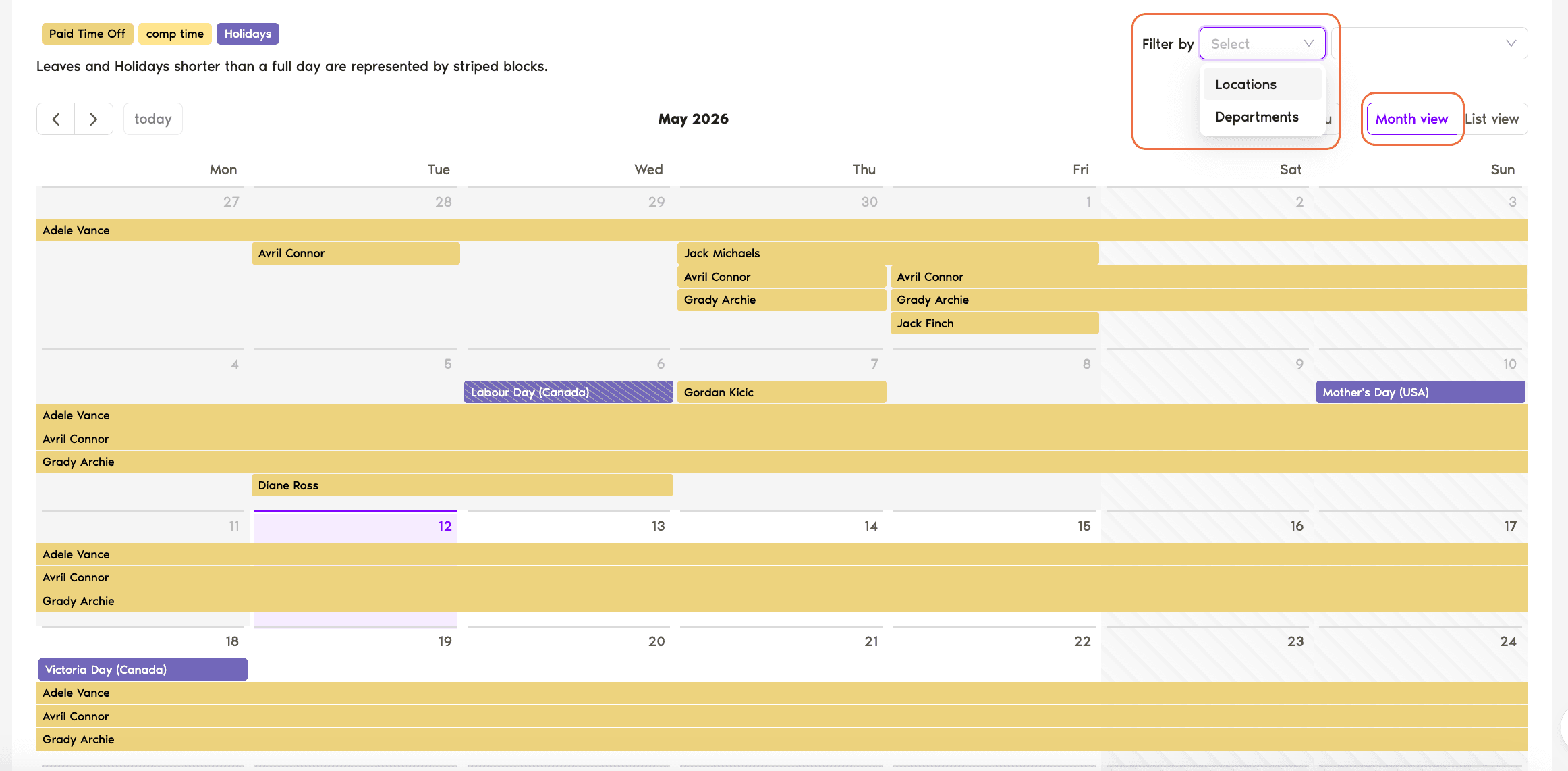
Calendar
Click Calendar in the left sidebar. You get a month grid showing every approved leave and holiday, with leaves color-coded by Leave Type. Filter by Department, Location, or Label to focus. Switch between Month view and List view at the top-right. See Calendar View Information for the full breakdown.
Wallchart
If your Admin has enabled Wallchart visibility for your role (via the Features and Permissions page), you'll also see a Wallchart tab in the left menu. It lays the team out as a horizontal grid — Users on rows, days as columns, leaves as colored blocks. Better for spotting overlap than the Calendar's date-grid view. See How Can I Use Wallchart?
What You'll See — and What You Won't
Common Questions
Your Admin has the Visibility Manager automation configured to limit visibility — typically to your own Department or to your personal leave records only. Ask your Admin to confirm the visibility scope set for your workspace.
That Leave Type has Hide Leave Type Name turned on (typically used for sensitive types like Sick Day or Medical Leave). Other Users see "unavailable" or similar; Admins and Approvers still see the actual type name.
On the Calendar and Wallchart, they render with a stripe pattern (versus solid blocks for full-day leaves) and the entry includes the time window. The Dashboard's leave panels also reflect them, with their hours alongside the requester's name.
 Book a Call