
Last updated on May 26, 2026
How Do I Set a Custom Work Week?
Some or all of your users may have a custom schedule (instead of the usual 8 hours a day; Monday to Friday), which means you may need to customize their working week(s). You can do so by customizing the working week and even their working day length.
Need both — different days and different hours?
To customize both the working week schedule (Monday–Sunday) and the workday length (number of hours worked) for each user, see How Do I Set a Custom Workday Schedule?Customize Just the Working Week
If you'd like to solely customize a user's working week (Monday–Sunday) — just toggling which days are working days, without touching the hours-per-day — follow these steps:
- Go to the Vacation Tracker Dashboard — app.vacationtracker.io/signin.
- On the left-hand side of the dashboard, click Users.
- Once the page opens, click on the user's name or picture to enter their profile.
- On the user's profile, scroll down to the Working Days section and click Edit on the top right-hand corner of the section.
- A new pop-up will open where you will be able to edit the workweek and set the working days for that user.
- If you are only looking to edit the working week, click Update and you are done!
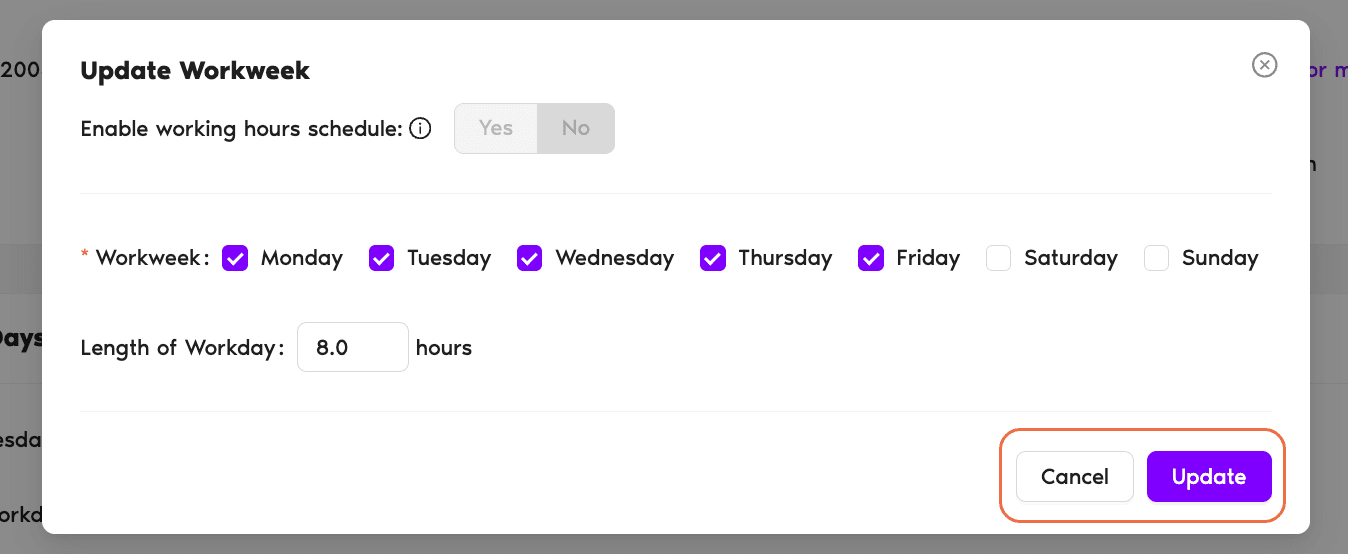
Example: Jean is very lucky to have Monday and Friday off along with the weekend! So we only check-mark Tuesday, Wednesday and Thursday as her working days.
Want to change hours-per-day too?
If you also need to set custom hours for each working day (e.g., 10-hour shifts instead of 8), turn on the Enable Working Hours Schedule toggle at the top of the same pop-up — see How Do I Set a Custom Workday Schedule? for the full flow. Book a Call