
Last updated on January 26, 2026
How Do I Set a Custom Workweek for an Individual User?
As an Admin, you can customize the workweek for individual users quickly and easily — useful when one team member works a different schedule from the rest of their Location (e.g., Tuesday–Saturday instead of Monday–Friday).
Setting It Up
- Go to the Vacation Tracker Dashboard — app.vacationtracker.io/signin.
- On the left-hand side, click Users.
- Once the page opens, select the user you wish to edit.
- On the user's profile, scroll down to the Working Days box. To enter the settings, click Edit.
- A new pop-up will open which you will be able to edit according to the workweek schedule.
- Once you are done editing, click Update and you are done!
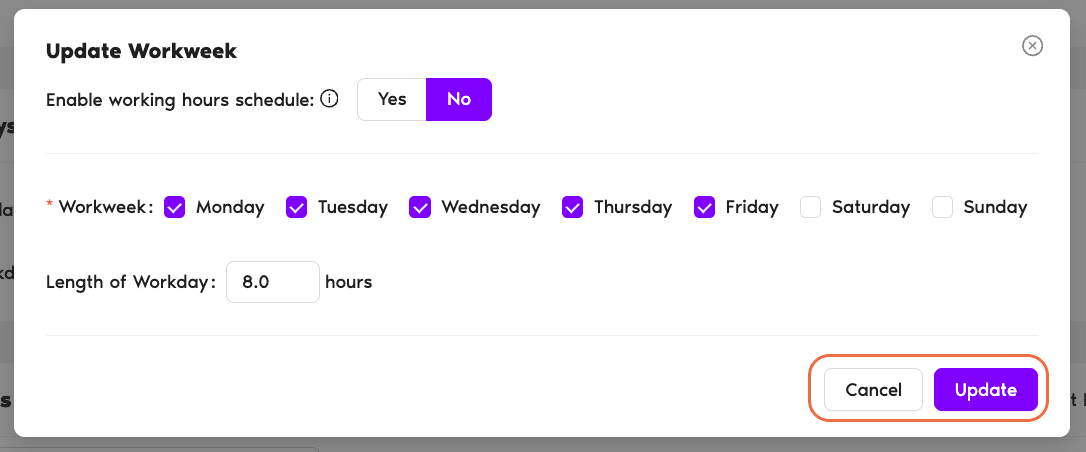
Same flow for workday length
If you'd like to customize a user's workday length, follow the same steps above — both the working days and the Length of Workday are managed from the Working Days box.Customizing leave quotas instead?
If you'd like to customize a user's leave quotas, see How Do I Customize Leave Quotas for Individual Users?How non-working days behave
Users are not able to send leave requests for non-working days, and non-working days will not be included in leave requests that span over several days. Book a Call