
Last updated on February 13, 2026
How Do I Set Initial Brought Forward (Rolled Over) Days?
Need a way to enter your employees' initial starting balances from your previous tracking or HR system? Vacations existed before Vacation Tracker — and the Initial Brought Forward feature allows Admins to manually update users' previous (initial) balances for each leave type.
First-year only
This field can only be edited for the first year. For future years, the Brought Forward field will be automatically calculated using prior-year information if you have that setting configured.Steps
- From your online dashboard, go to the Users tab on the left-hand side.
- Select the user you'd like to update the balance(s) for.
- On the user's profile page, scroll down to the Leave Quotas section.
- Select the Leave Type that you'd like to update and the Period.
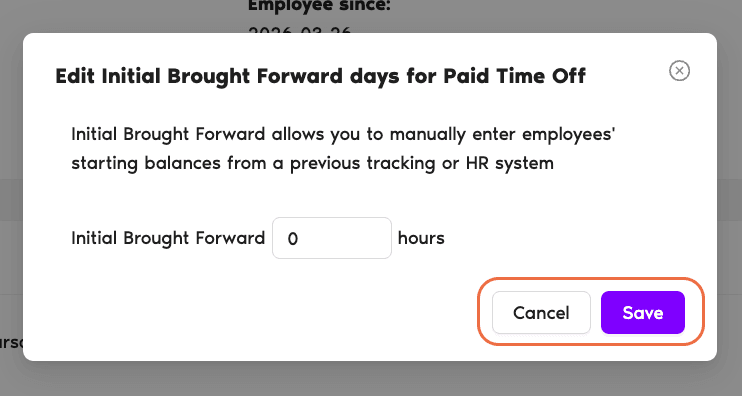
- In the Initial Brought Forward field, enter the number of days the user carried over for that year.
- Click Save at the bottom of the field — the quotas will be updated for that period.
If the Leave Type Has No Brought Forward Policy Set
If the Leave Type does not have a Brought Forward policy set, you will see an Unlock icon in the Initial Brought Forward field.
Setting up Brought Forward policy
For additional information on how to set the Brought Forward option, see How Do I Set a Brought Forward (Rollover) Policy? Book a Call