
Last updated on January 27, 2026
How Do I Make Adding a Reason Mandatory for a Leave Type?
Some companies want context on every request — why someone is taking the day off, not just that they are. Making the Reason field mandatory forces employees to write a short note before they can submit a leave request.
How to Make the Reason Mandatory
The Reason Required setting lives on each leave policy — meaning you can require a reason for Vacation at one Location, while leaving Personal Day open-ended at another. You do this per Location, per Leave Type.
- Sign in at app.vacationtracker.io.
- In the left-hand menu, expand Leave Setup and click Locations.
- Click Edit Leave Policies on the Location you want to configure.
- Find the leave policy you want to update (for example, Vacation or Sick Day) and click the edit icon on its row.
- In the policy editor, tick the Reason Required checkbox.
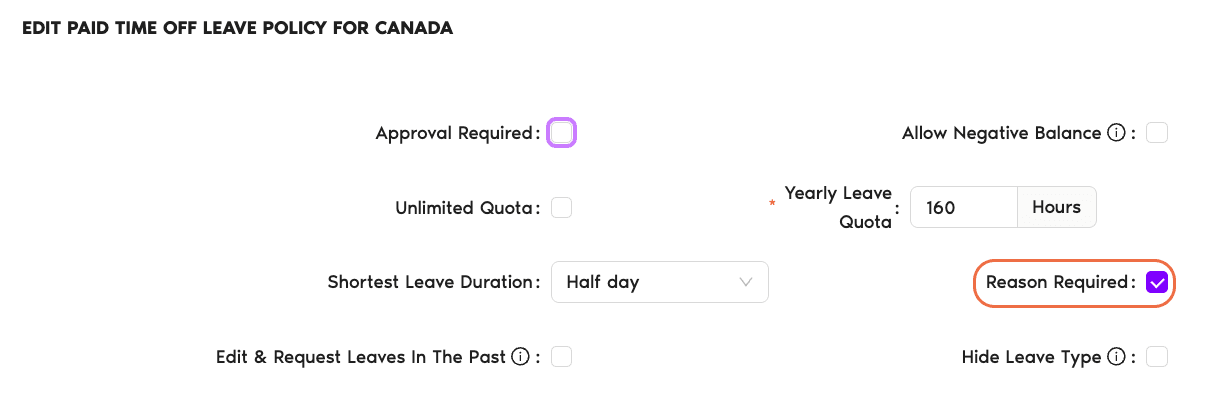
- Click Update to save your changes.
From this moment on, any employee assigned to that Location and Leave Type will need to type something in the Reason field before the request form will go through.
What Employees See
When a leave type has Reason Required turned on, the Request Leave form behaves slightly differently for that employee:
Common Questions
Only the User's Approver and Vacation Tracker Admins. Teammates, other managers outside the approval chain, and calendar integrations don't see the reason — they only see that the person is away. See Administrator vs Approver Role for more on what each role can access.
Yes. The setting is on each leave policy, and every leave policy is tied to one Leave Type at one Location. You could make Bereavement require a reason while leaving Vacation optional — each policy has its own independent setting.
No. The rule only applies to new requests submitted after you save the change. Previously approved or pending leaves without a reason aren't affected, and nobody has to go back and add one.
 Book a Call