
Last updated on June 3, 2025
Microsoft Teams: Accessing Tabs within Microsoft Teams
Vacation Tracker comes with three Microsoft Teams tabs — a condensed dashboard, your personal profile, and a Request Leave shortcut. The Request Leave tab installs automatically with the bot; the others are accessible from the channel or chat.
The Three Tab Options
All tabs can be accessed by any User. However, different permission levels (User, Approver, Admin) will see different information within the condensed online dashboard tab — what's visible scales with your role.
Dashboard / Overview tab
A condensed version of the online dashboard, accessible from your Team's channel. What you see depends on your role: Users see their own info, Approvers see their team's pending requests, and Admins see the full workspace overview.
My Profile tab
Your personal Vacation Tracker profile inside Teams — your balances, request history, and quick links. Same content as the profile section of the online dashboard. Lets you request leaves, edit upcoming leaves, and access the Helpdesk directly from inside Microsoft Teams.
Request Leave tab
Built into the bot itself — appears automatically when the Vacation Tracker bot is installed. Opens the Request Leave form and shows your remaining quota for the Leave Type you select, plus whether anyone else from your Department is away during the time you're requesting.
Accessing the Dashboard Tab in a Channel
- Open Microsoft Teams and click Teams in the left sidebar.
- Pick the team Vacation Tracker is installed in.
- Pick the channel Vacation Tracker is installed in.
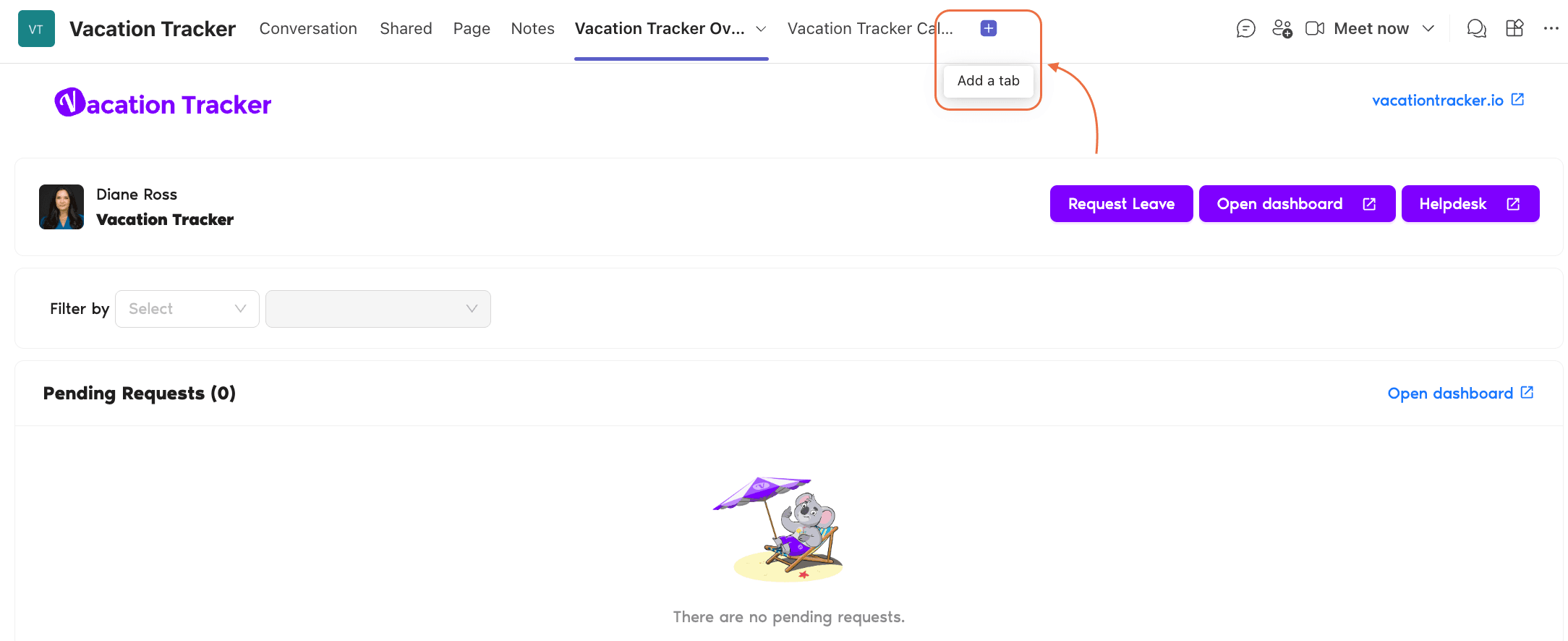
- At the top of the channel, look for the Vacation Tracker tab. If it's not visible, click the + sign to find and add it.
- Click the tab to load the dashboard view for your permission level.
Accessing the My Profile Tab
- Open Microsoft Teams and click Chats in the left sidebar.
- Find the Vacation Tracker chat (or search for "Vacation Tracker" in the search bar at the top).
- Click into the bot.
- Click the My Profile tab at the top of the chat.
From the My Profile tab you can request leaves, edit upcoming leaves, and access the Helpdesk directly inside Microsoft Teams.
What You'll See in Request Leave
The Request Leave tab shows two helpful things alongside the request form:
 Book a Call