
Last updated on June 3, 2025
Microsoft Teams: How Do I Add The Vacation Tracker Bot To Microsoft Teams?
If you've signed up for Vacation Tracker but the bot isn't showing in Microsoft Teams yet, you need to install it manually. Takes about a minute — search the Apps store inside Teams, pick how you want it installed, and you're done.
Steps
- In Microsoft Teams, click the Apps icon at the bottom-left of the sidebar.
- In the search bar, type Vacation Tracker.
- Click the Vacation Tracker tile in the results.
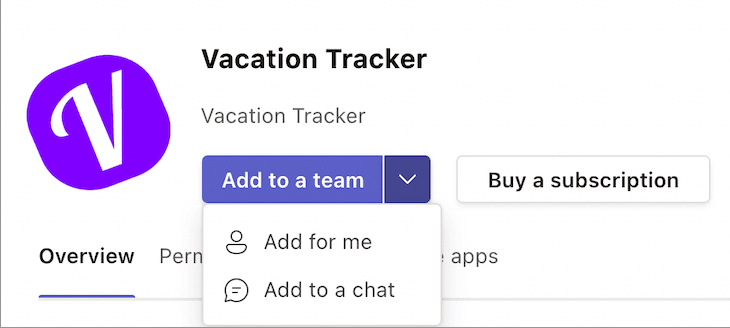
- On the install dialog, click the dropdown arrow on the Add button to see the install scopes.
- Click Add to a Team to install the bot for everyone active in Vacation Tracker (and to enable channel notifications).
- Pick the team and the channel that should host the bot — type the name or pick from the list. Channel and notification settings can always be changed later from the dashboard.
- Click Set Up Bot.
- You'll be taken to the channel; a confirmation message confirms Vacation Tracker is installed.
The Vacation Tracker bot will appear as a chat on the left-hand side of your Microsoft Teams app. Type Request Leave in the chat bar and the bot will respond.
From inside Microsoft Teams, you can now request leaves, view notifications, and approve requests (if you're an Approver) — all without leaving Teams.
Three Install Scopes
Add to a Team
Adds the bot to a Team and a chosen channel. This is the right scope if you want everyone in your organisation to interact with Vacation Tracker via Teams. Channel-level notifications are available with this option.
Add for Me
Pins Vacation Tracker to your personal Microsoft Teams taskbar — a 1:1 chat with the bot. This option allows you to easily access the Vacation Tracker bot from the taskbar.
Add to a Chat
Adds the bot to a group chat for yourself or any other individual member of your team. When this option is selected, you can type in the name of the group chat to add Vacation Tracker to. Members of that chat will see a link to Vacation Tracker which lists what you can do with the bot, and they'll have the option to send a message to the bot to request a leave.
 Book a Call