
Last updated on June 3, 2025
Microsoft Teams: Adding the Vacation Tracker Calendar Tab
Pin the Vacation Tracker Calendar as a tab inside any Teams channel — your team can see who's away without leaving Microsoft Teams or signing into the dashboard.
Microsoft Teams users only
This article is specific to the Microsoft Teams integration.Why Add the Calendar Tab
The Calendar tab gives every member of a channel a live view of upcoming leaves — same calendar you'd see on the dashboard, but right in Teams. Useful for teammates who don't open the dashboard often, or for teams that prefer to keep planning conversations in Teams.
Steps
- Open Microsoft Teams.
- Go to the team where Vacation Tracker is installed.
- Click the + at the top of the channel page to add a new tab.
- Search for Vacation Tracker, or pick it from the list of pre-installed apps.
- A pop-up appears with two tab type options: Overview or Calendar. Pick Calendar.
- Click Save.
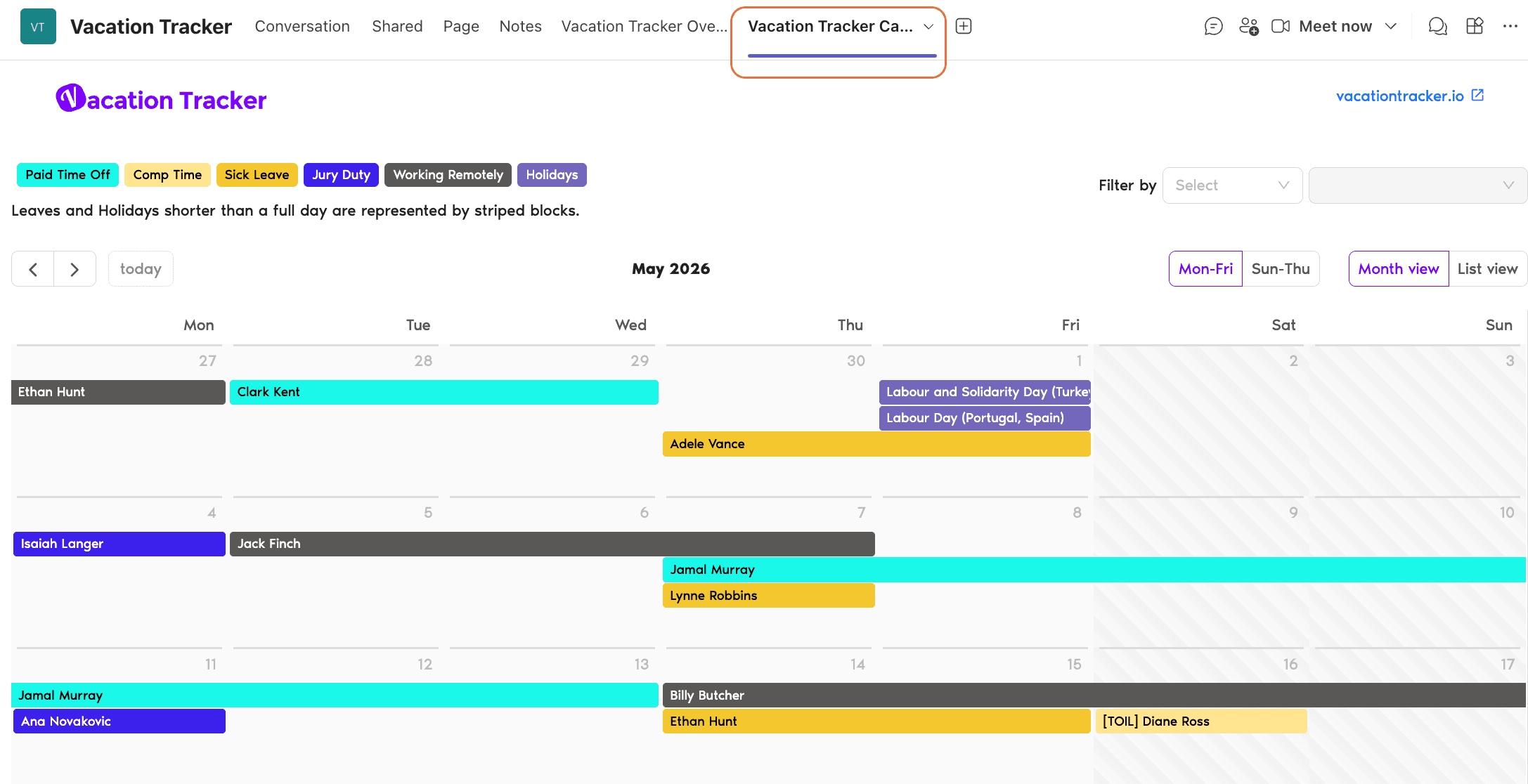
The Calendar tab is now pinned to your channel.
What Users See
Same view as the online dashboard's Calendar — color-coded Leave Types and Holidays for everyone in the workspace.
Other tabs you can pin
The Vacation Tracker tab also offers an Overview view (dashboard-style summary). Both can be pinned to the same channel for different purposes — daily check at a glance or planning view. Book a Call