
Last updated on July 2, 2026
Microsoft Teams: Signing Up / Setting Up Vacation Tracker
Setting up Vacation Tracker for Microsoft Teams is two stages: first you sign up via the online dashboard, then you install the bot inside Teams. Once both are done, your team can request leaves directly from chat.
Stage 1: Sign Up Through the Dashboard
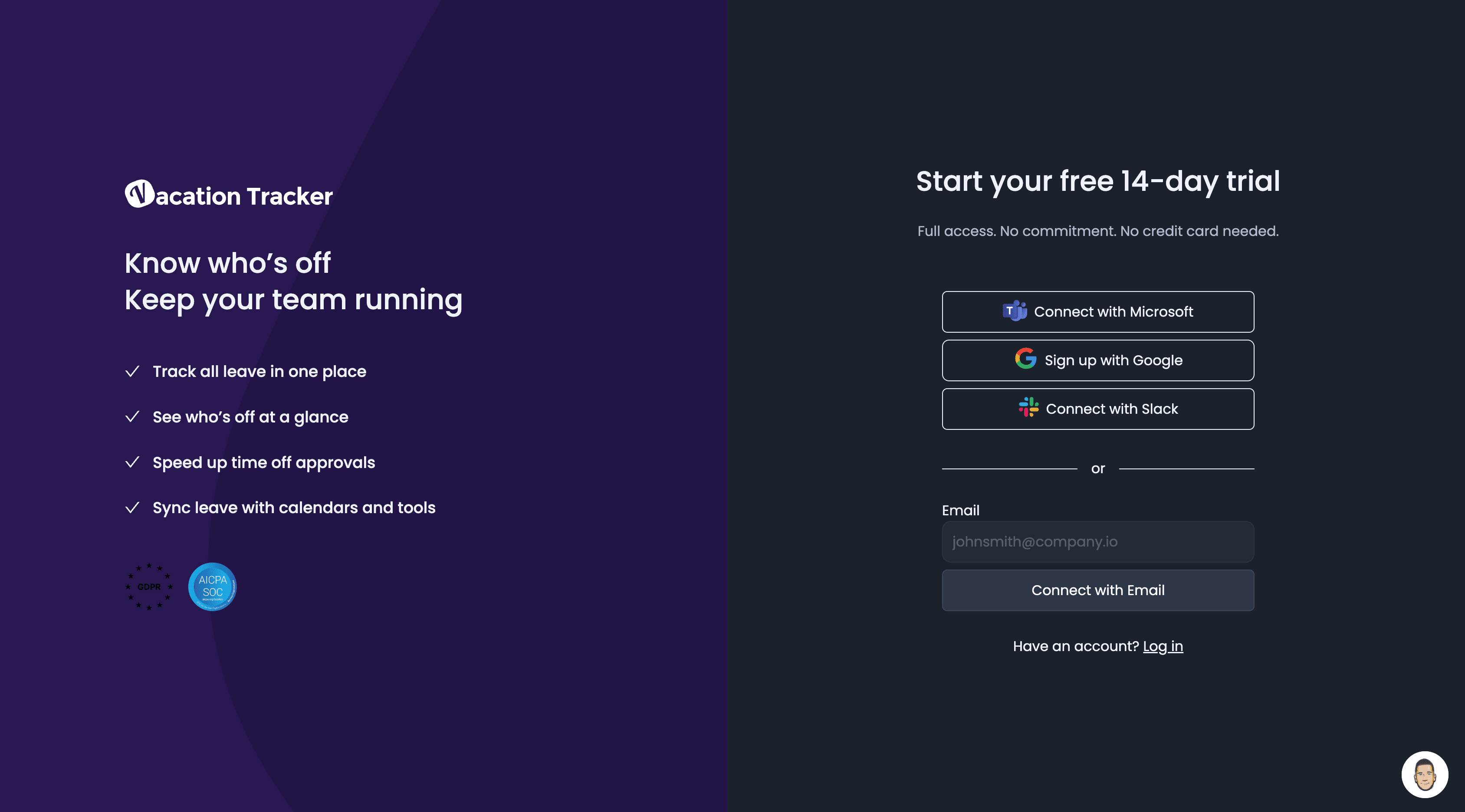
- Go to app.vacationtracker.io/signup.
- Click Sign Up with Microsoft.
- You may be redirected to the Office 365 sign-in page. Enter your credentials and approve the OAuth permissions; you'll be sent back to Vacation Tracker's signup.
- Fill in the company info on the signup form, then click Continue.
- Pick your Users — the next step lets you import everyone from your Microsoft Teams directory or pick specific Users to activate. You can always import more later.
- Click Continue again. Vacation Tracker shows the total count of active Users and the cost.
- Choose Start your 14 Day Free Trial (no billing info needed) or enter your billing details now. You'll be taken to the dashboard.
Stage 2: Install the Vacation Tracker Bot in Teams
- In the Microsoft Teams sidebar, click the Apps icon.
- Search for Vacation Tracker.
- Click the Vacation Tracker tile.
- On the install dialog, click the dropdown arrow on the Add button — three install scopes show up. Add to a Team is the most common choice for organisation-wide rollout.
- Pick the team and channel that should receive notifications (typed or selected). You can change channels and notification settings later from the dashboard.
- Click Set Up Bot.
- You'll be taken to the channel you selected; a small confirmation message confirms the bot was added.
From here you can go ahead and either request a leave using the bot or go to the online dashboard to set team or general notifications.
The Three Install Options
Add to a Team
Adds the bot to a specific Team and channel — the right choice for organisation-wide setup. Notifications can be sent to that channel.
Add for Me
Adds Vacation Tracker to your personal Microsoft Teams taskbar — a 1:1 chat with the bot. Gives you direct access to the chat and the chat history with the Vacation Tracker bot.
Add to a Chat
Adds the Vacation Tracker bot to a group chat within your Microsoft Teams app. When this option is selected, you'll be asked to enter the name of the group chat. Once added, members of that chat will see a link to Vacation Tracker, which lists what you can do with the bot. They'll also have the option to send a message to the bot to request a leave.
 Book a Call