
Last updated on June 29, 2026
Microsoft Transactables: Managing Licenses and Importing Users
If your team buys Vacation Tracker through the Microsoft marketplace (Transactables), user capacity is tied to licenses. This article walks through how Admins assign, reassign, and manage those licenses from inside the app.
How Licenses Work on MS Transactables
Under Microsoft Transactables billing, your subscription comes with a specific number of licenses. Each active user in Vacation Tracker consumes one license. You can assign licenses to any active user in your Office 365 directory — adding someone to Vacation Tracker is the same action as assigning them a license. When a user is removed, the license frees up and you can re-assign it to someone else.
How to Assign Licenses
- Sign in at app.vacationtracker.io.
- In the left-hand menu, under Team & Approval Flows, click Users.
- Click the Manage Licenses button at the top of the Users page.
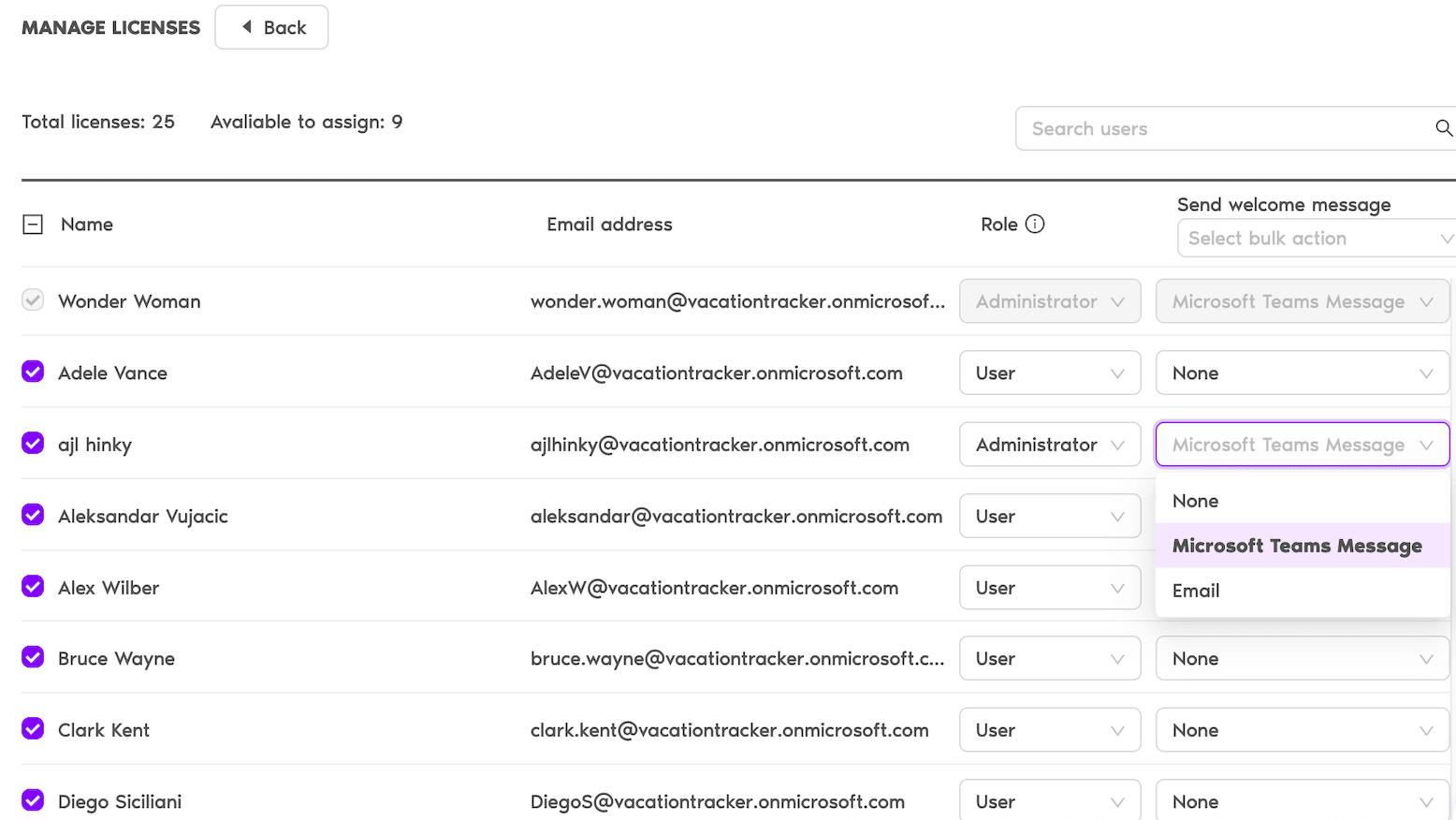
- You'll see a dashboard showing the number of licenses assigned and the number available to assign.
- Pick the users from your Office 365 directory that you want to add to Vacation Tracker.
- For each selected user, choose their role: User or Administrator.
- Decide whether to send a welcome message via Microsoft Teams or email (optional).
- Click Assign Licenses. The system confirms the assignment, and those users can now sign into Vacation Tracker.
Freeing Up a License
When someone leaves or changes roles, their license doesn't lock to them forever — you can reclaim it and reassign:
- From the Users page, find the user you want to deactivate.
- Deactivate them from their user menu (the action that removes them from Vacation Tracker).
- The license frees up and appears in the "available to assign" count on the Manage Licenses page.
- Assign it to a new user whenever you're ready.
Common Questions
If you see a Manage Licenses button at the top of the Users page, you're on MS Transactables. If instead you see options to import users directly from Microsoft Teams or Slack without a license count, you're on direct Vacation Tracker billing. The sibling article MS Teams: Billing with Vacation Tracker vs. Microsoft Transactables breaks down the distinction further.
License count is managed through your Microsoft billing — Vacation Tracker doesn't control this directly. Work with your Microsoft billing admin to increase the number of seats on the subscription. Once more licenses are available on the Microsoft side, they'll show up on the Manage Licenses dashboard automatically.
Yes. The Manage Licenses screen lets you select multiple users at once from your Office 365 directory. Pick their roles individually (User or Admin), then click Assign Licenses to batch-assign.
 Book a Call