
Last updated on February 18, 2026
Slack Troubleshooting: Slack Workspace Permissions
Can't sign in to Vacation Tracker with your Slack Workspace? Most of the time it's a Slack-side permissions issue: your workspace's Admin policy requires approval before any new app — Vacation Tracker included — can be installed.
What You'll See
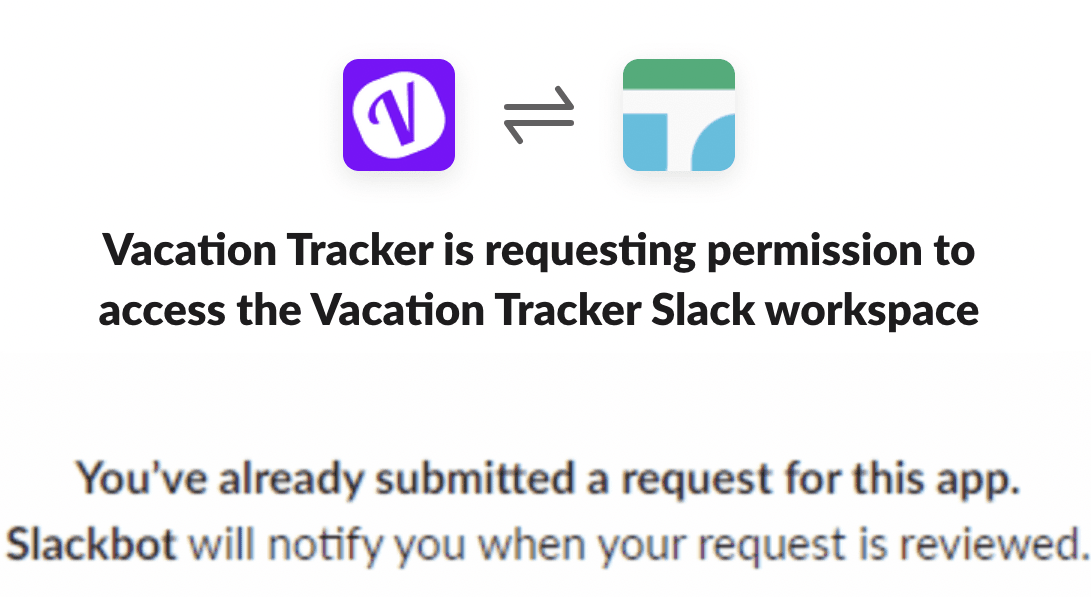
You'll get an error message saying the system can't access your workspace. The error usually appears immediately after clicking Sign in with Slack at app.vacationtracker.io/signin.
Behind the scenes, your Slack workspace has app installation restricted — non-admin members can't add apps without explicit approval from a Workspace Admin.
How to Fix It
- Reach out to a Slack Workspace Admin at your organisation.
- Ask them to approve the request to install the Vacation Tracker bot. Many Slack workspaces auto-queue the request when a non-admin tries to install — your Admin will see the pending request in Slack's app-management settings.
- Once approved, return to app.vacationtracker.io/signin and click Sign in with Slack again.
- You'll go through the OAuth consent screen, then land in the Vacation Tracker dashboard.
Different error?
If the error specifically says "Apologies, but you are not authorized to install Vacation Tracker," the underlying Slack setting is different. See Slack Error: "Apologies, but you are not authorized to install Vacation Tracker" for the exact fix.Your Slack Admin can also pre-install
If you'd rather not wait for individual approvals, your Slack Admin can install Vacation Tracker proactively for the whole workspace. Once installed, any User can sign in directly without a separate approval round.Need help?
Contact our Support team via email or chat, Monday to Friday, 9 AM – 5 PM EST. Email: hello@vacationtracker.io Book a Call