
Last updated on February 18, 2026
How Can I Sign Up / Sign In using my Email?
No Slack, no Microsoft Teams, no Google Workspace? You can still use Vacation Tracker with the Email Only integration. Sign up with your work email, invite teammates, and the whole flow — requests, approvals, notifications — runs over email.
When This Path Makes Sense
The Email Only integration is for organisations that:
Notifications, approval requests, and invites all flow through email. Users sign in to the Vacation Tracker dashboard with email + password.
Sign Up Steps
- Go to app.vacationtracker.io/signup.
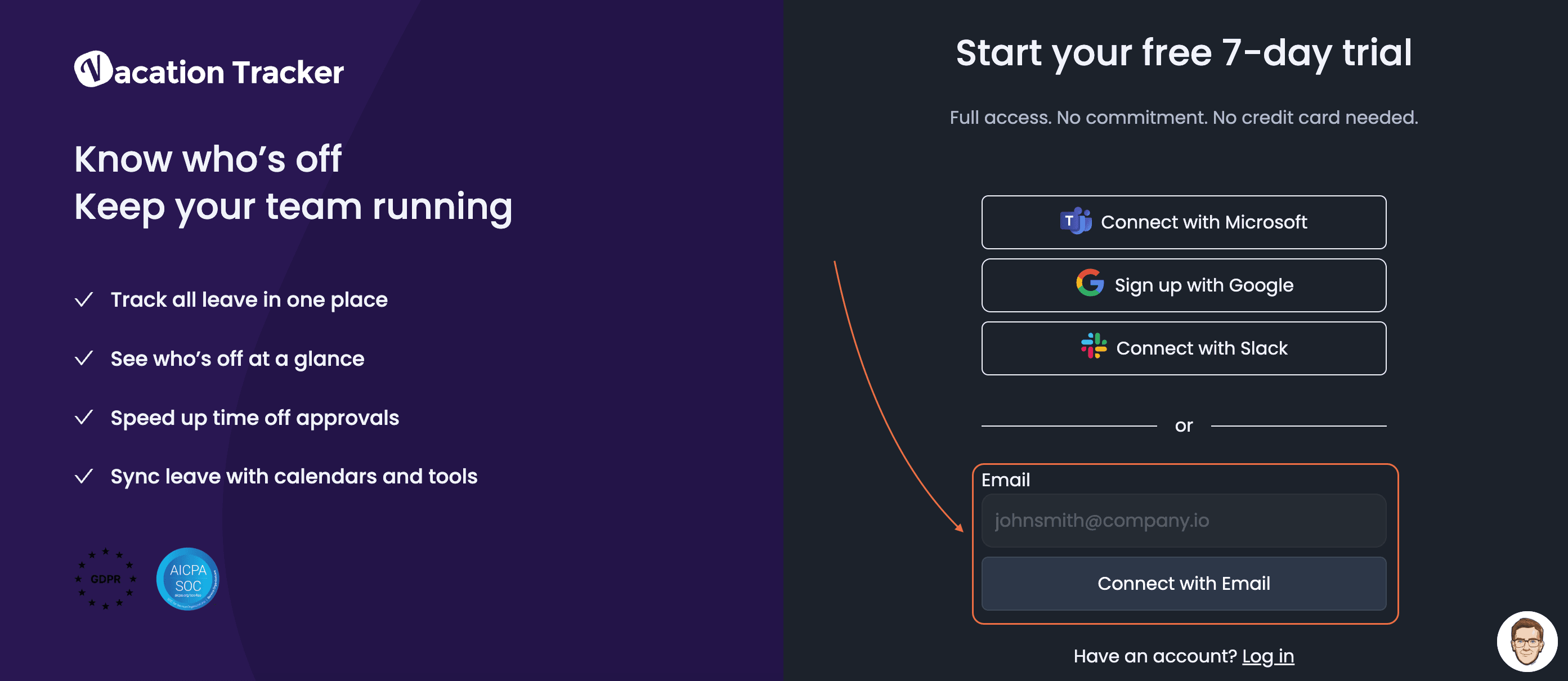
- Click the Connect with your Email option.
- Enter your work email — you'll be redirected to the signup form.
- Create your profile (email + password) and fill in the company info. Click Continue.
- Invite your colleagues by entering their email addresses. You can mix domains (e.g. contractors with different email suffixes).
- Pick the plan: Core or Complete.
- Done — you're in the dashboard, ready to configure Leave Types, Leave Policies, Locations, and Departments.
Inviting and Managing Users
When you invite Users, they receive an email invitation. Once they accept, they create a password and sign in. The Users page in the dashboard tracks invitation status across three tabs:
Profile Pictures and Avatars
Email Only Users don't get an avatar pulled in from a workspace directory. Instead, they can upload one manually from their profile page — click Edit and pick an image from the device.
Forgot Your Password?
The signin page has a Forgot your Password link. Enter the email you signed up with, and you'll receive a code to reset your password.
Marko@example.com, signing in as marko@example.com will fail. Book a Call