
Last updated on February 13, 2026
How do I Check Leave History and Upcoming Leaves for Individual Users?
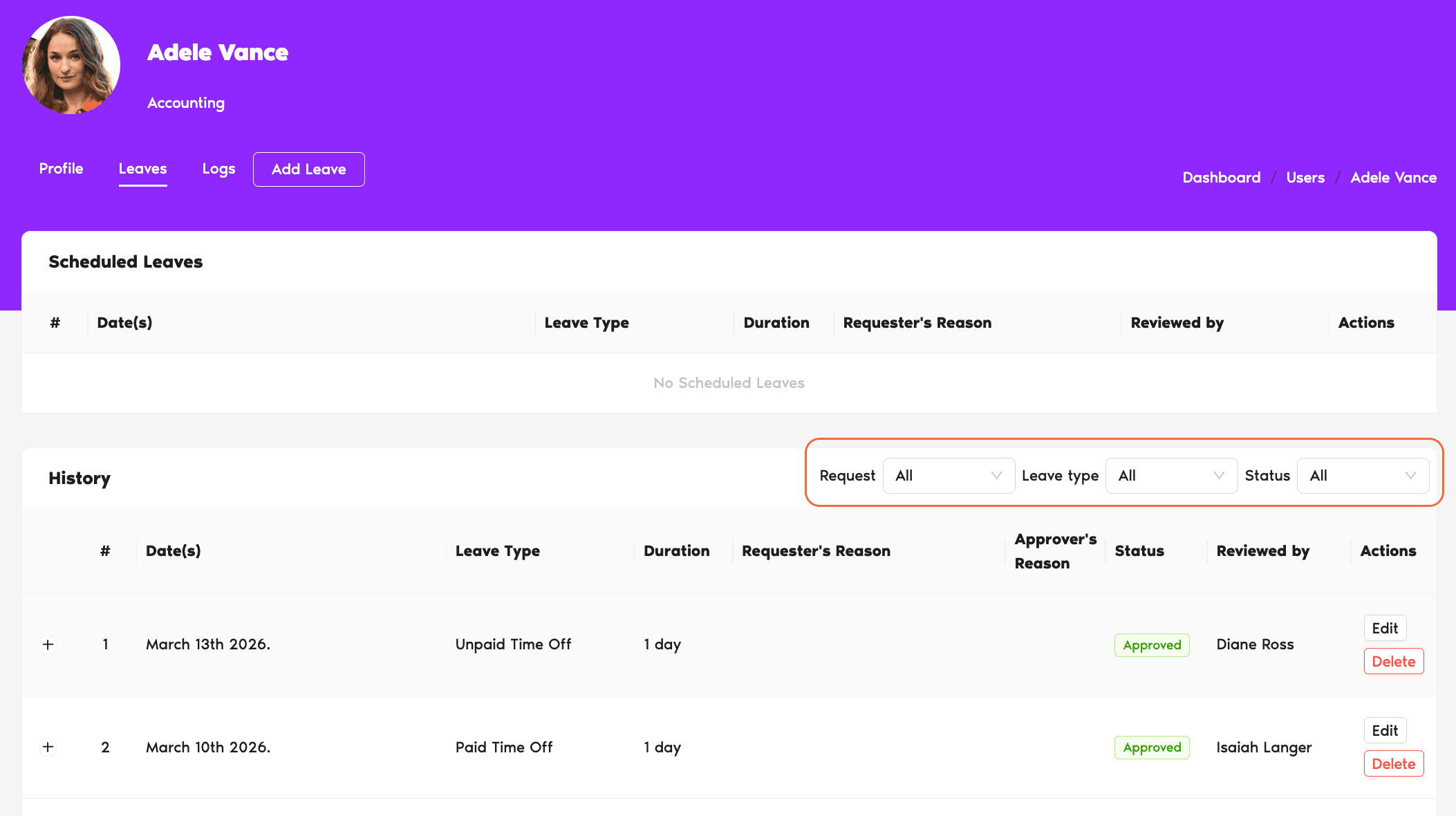
The User profile's Leaves tab is the canonical place. It splits into two sections — Scheduled Leaves (what's coming up) and History (what's already happened) — and supports filtering by Status, Request Type, and Leave Type.
Steps
- Sign in at app.vacationtracker.io.
- In the left menu, click Users.
- Click the User you want to inspect.
- On their profile, click the Leaves tab.
What You'll See
The Leaves tab is organized into two sections side by side:
Scheduled Leaves (upcoming)
Leaves the User has on the books going forward. Columns here focus on what's planned:
History
Everything else — leaves that have already happened, been denied, cancelled, or expired:
Filters
The filter row at the top of the Leaves tab applies to both sections at once. You can narrow by:
There's no date-range filter — the page already organizes time by Scheduled (forward) vs. History (back), and the lists are ordered chronologically within each section.
Common Questions
No. The Leaves tab doesn't have a date-range picker — instead it splits leaves into Scheduled (forward in time) and History (backward), each ordered chronologically. If you need a specific window, scroll the History section to find the dates you're after, or use Export a Leave Request Report where date range is supported.
In both sections — Scheduled if the TOIL is upcoming, History if it's already happened or been denied. Use the Request Type filter set to TOIL to see only TOIL records.
No. Approvers can only open profiles for Users in Departments where they're assigned to the Approver(s) field. Admins can see anyone in the workspace.
 Book a Call