
Last updated on February 13, 2026
How Do I Request an Hourly Leave?
If your Admin has enabled the hourly option on a Leave Policy, you can request leave in 1-hour, 30-minute, or 15-minute blocks instead of a full or half-day. Useful for appointments, errands, or anything that doesn't justify a half-day off.
Dashboard (Email and Google Workspace)
- Sign in at app.vacationtracker.io.
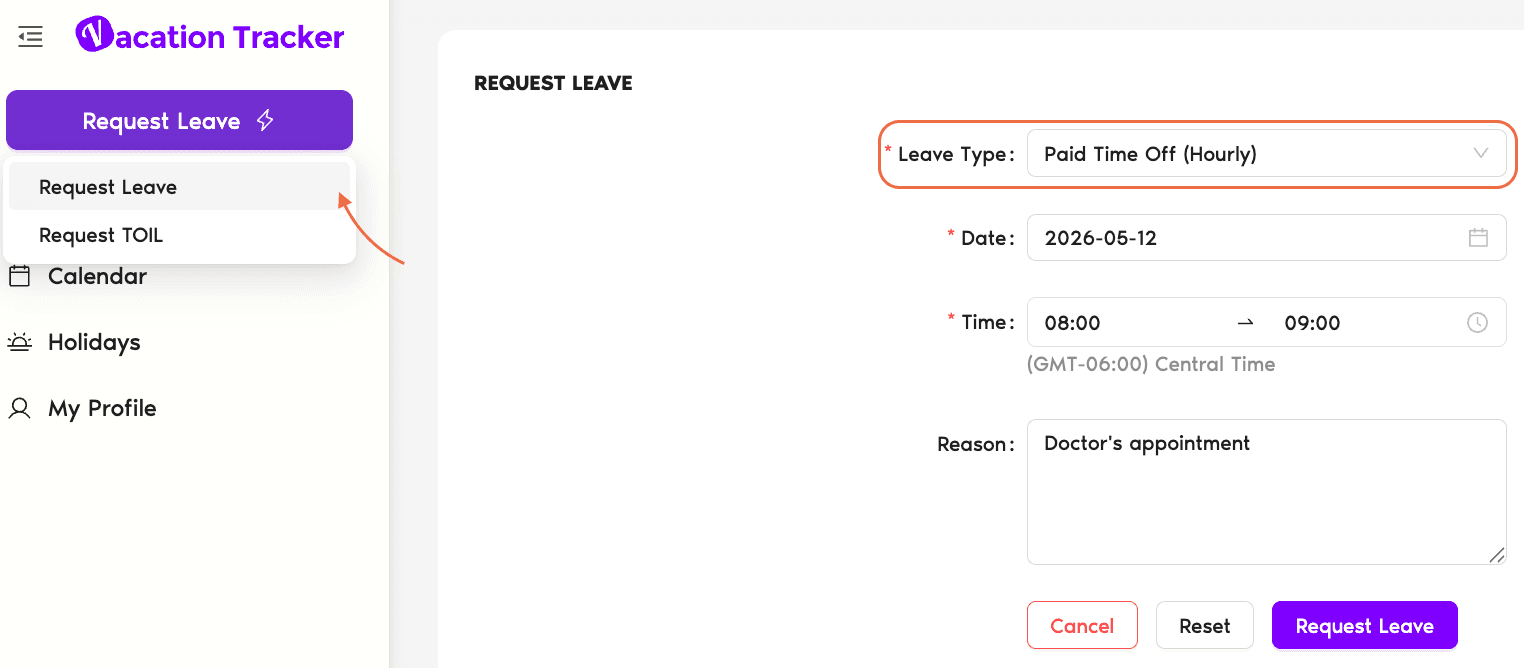
- Click Request Leave on the left.
- Pick the Leave Type with the hourly option indicated in the dropdown.
- Pick the date, choose the start and end hours, and add a reason if required.
- Click Request Leave.
Microsoft Teams
- Open the Vacation Tracker chat (left sidebar in Teams) or use the Request Leave tab in the Vacation Tracker app.
- Type Request Leave in the chatbot and send.
- Pick the Leave Type with the hourly option indicated.
- Pick the date and the hours you'll be away.
- Click Submit.
You can also use the Request Leave buttons on the My Profile and Vacation Tracker Overview tabs.
Slack
- Type
/vacationanywhere in Slack — a public channel, a private channel, a group DM, your own DM, or anyone else's DM. You don't need to send it to the Vacation Tracker bot specifically; the slash command works in any conversation and the response is only visible to you. - Pick the Request Leave option from the menu Vacation Tracker offers.
- Pick the Leave Type with the hourly option indicated.
- Pick the date and the hours you'll be away.
- Click Submit.
Editing or Cancelling After Submission
If you need to change the hours after submitting, you can edit a pending or upcoming hourly leave the same way as any other leave — see How Do I Edit My Pending or Upcoming Leave? To cancel, see How Do I Cancel My Upcoming Leave Request?
Common Questions
The Leave Policy that ties the Leave Type to your Location doesn't have Shortest Leave Duration set to a sub-day option (1h / 30min / 15min). Ask your Admin to lower that setting on the policy — see Shortest Leave Duration.
A single hourly request covers one day with a start and end hour. For partial absences spanning multiple days (e.g. half-day Monday + 2 hours Tuesday), submit each one as its own hourly request.
Yes. Hourly leaves show on the Calendar and Wallchart with a stripe pattern (different from solid full-day blocks) and the entry includes the start and end times so teammates can see exactly when you're available.
 Book a Call