
Last updated on February 13, 2026
How Do I Set a User's Start Date and/or End Date?
Within Vacation Tracker you can set both the employee's start date and end date. The start date can be used for resetting the yearly quota. The end date can be used for your own records or for contractor-type employees.
What end-date does
Users are not able to request leave past the end date, and once the end date is reached, the User will be deactivated.Reset by start date
The employee start date can also be used to reset the yearly quota — see Can I Reset the Leave Quota Based on the Employee Start Date?Stage 1: Activate the End Date Option
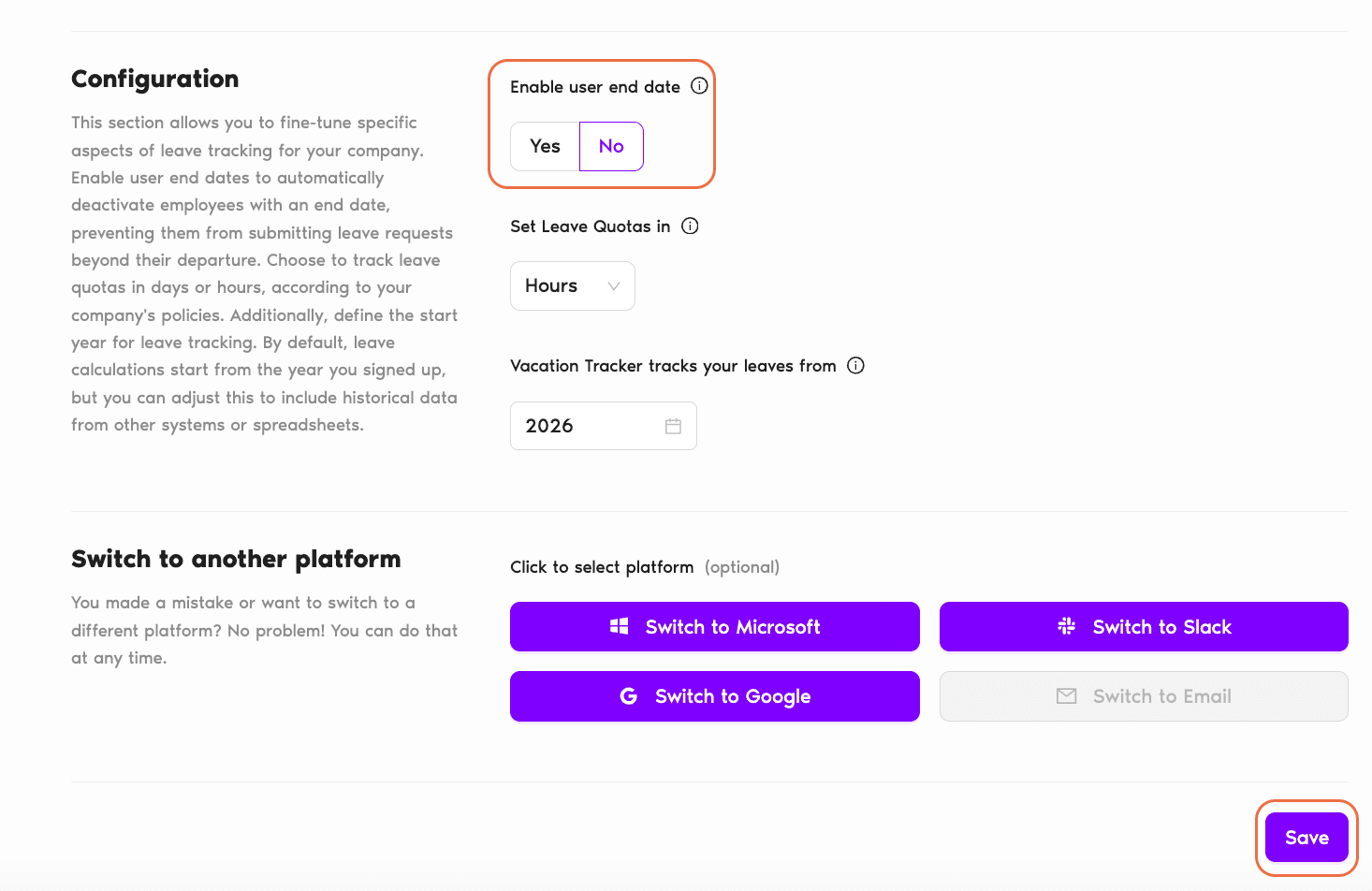
Before setting the User's end date, you must activate the option:
- Sign in to your dashboard at app.vacationtracker.io/signin.
- On the left-hand side menu, under Workspace Settings, click on General.
- On the page, find the Enable user end date setting and select Yes or No.
- Click Save to save the changes.
Stage 2: Set the User's End Date
- Make sure you are on the Vacation Tracker Dashboard — app.vacationtracker.io/signin.
- On the left-hand side, click Users.
- Click on the User you wish to update.
- On their profile page, find the User Profile box. Click Edit.
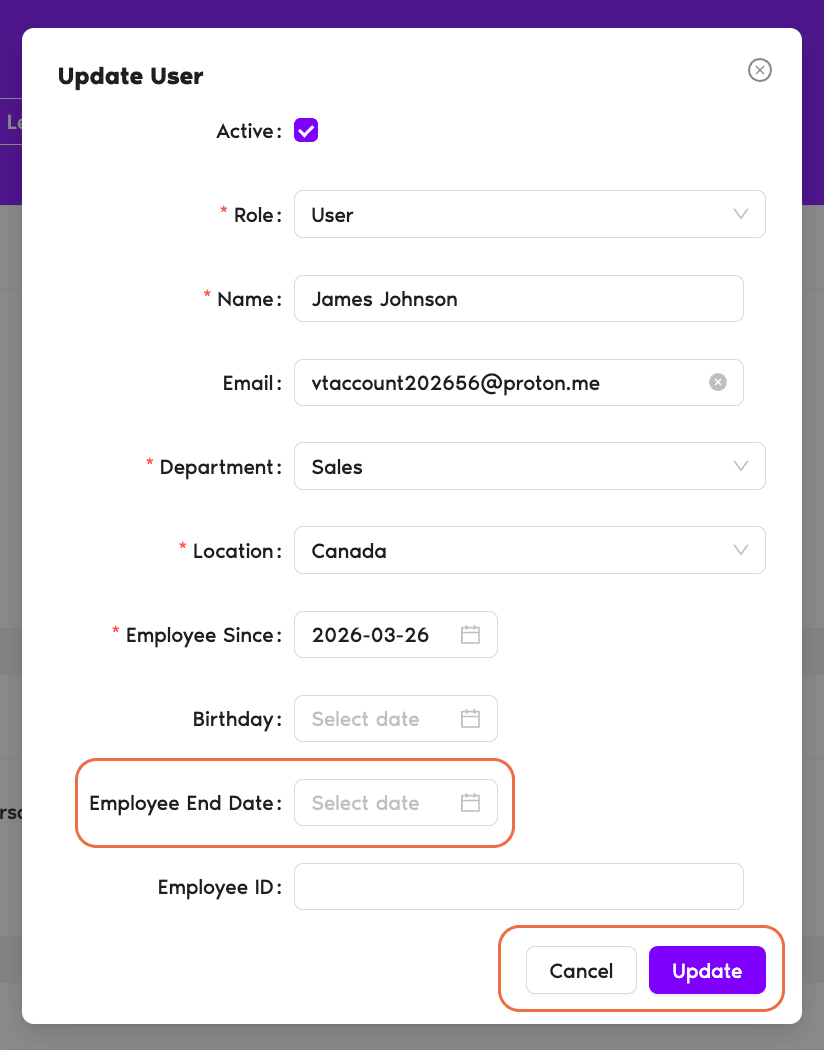
- A pop-up will appear with editable fields, including Employee End Date — set the end date for the user.
- Once you are done editing, click Update to save your changes.
Audit changes
If you'd like to view any changes made to a user's profile, you can do so by viewing the Logs page. See How Can I View User Profile Logs? Book a Call