
Last updated on February 18, 2026
Microsoft Teams: Microsoft Transactables — Signing Up / Setting Up Vacation Tracker
Sign up for Vacation Tracker through Microsoft AppSource instead of vacationtracker.io. Your subscription, invoices, and licenses live inside your Microsoft account — same place as the rest of your Microsoft billing.
When This Path Makes Sense
Two reasons teams pick this signup path:
Setup Walkthrough
1. Find Vacation Tracker on AppSource
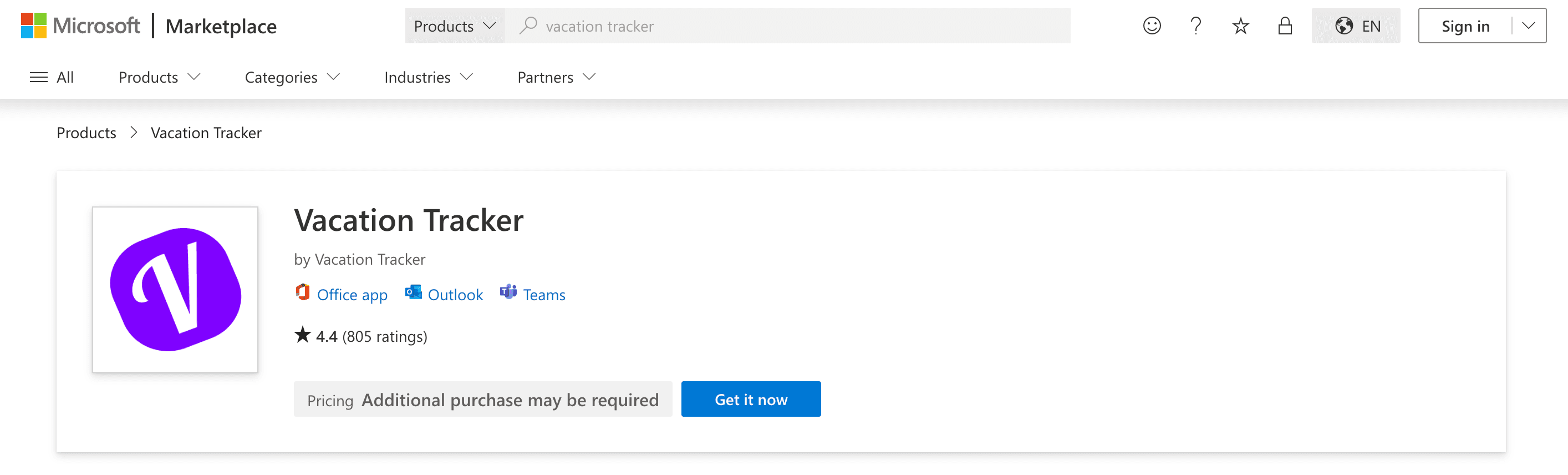
Search for Vacation Tracker on Microsoft AppSource. Review the listing and click Get it Now.
2. Checkout
Pick the plan you want and enter the number of licenses you need to assign. Review the order summary, then click Place Order. After the order completes, click Configure Now to start account setup.
3. Complete Company Setup
Fill in Company and Location details. Set the Paid Time Off Quota for the Location, or pick the Unlimited Quota option. Accept the Terms of Service and Privacy Policy, then click Continue.
You'll be asked to sign in to your Microsoft account and approve the OAuth permissions Vacation Tracker needs.
4. Assign Purchased Licenses
You'll see a list of active Users from your Office 365 directory. Assign your purchased licenses to specific Users. For each, you can:
5. Set Up the Bot and Tabs
Indicate whether you're an Admin within your Office 365 account. If you are, pick which Microsoft Teams team should host the Vacation Tracker bot and tabs, then click Install Bot and Tabs.
Microsoft may ask you to enable additional permissions. Once approved, you'll be redirected to your Vacation Tracker dashboard, ready to configure Leave Types, Locations, and Departments.
Configure Your Workspace
Once you're in the dashboard, the typical setup order is:
 Book a Call