
Last updated on January 27, 2026
How Do I Delete the Seniority Based Entitlement (SBE) Automation?
If there was a mistake when your Seniority Entitlement has been created or something changed that requires you to delete the automation? No worries, you are at the right place!
In order to delete the Seniority Entitlement Automation, an Admin needs to go through the following process:
Log into your Vacation Tracker account - app.vacationtracker.io/signin
Open Workspace Settings and select Automations
Select Seniority Entitlement
On the right-hand side of the screen click on the small bin
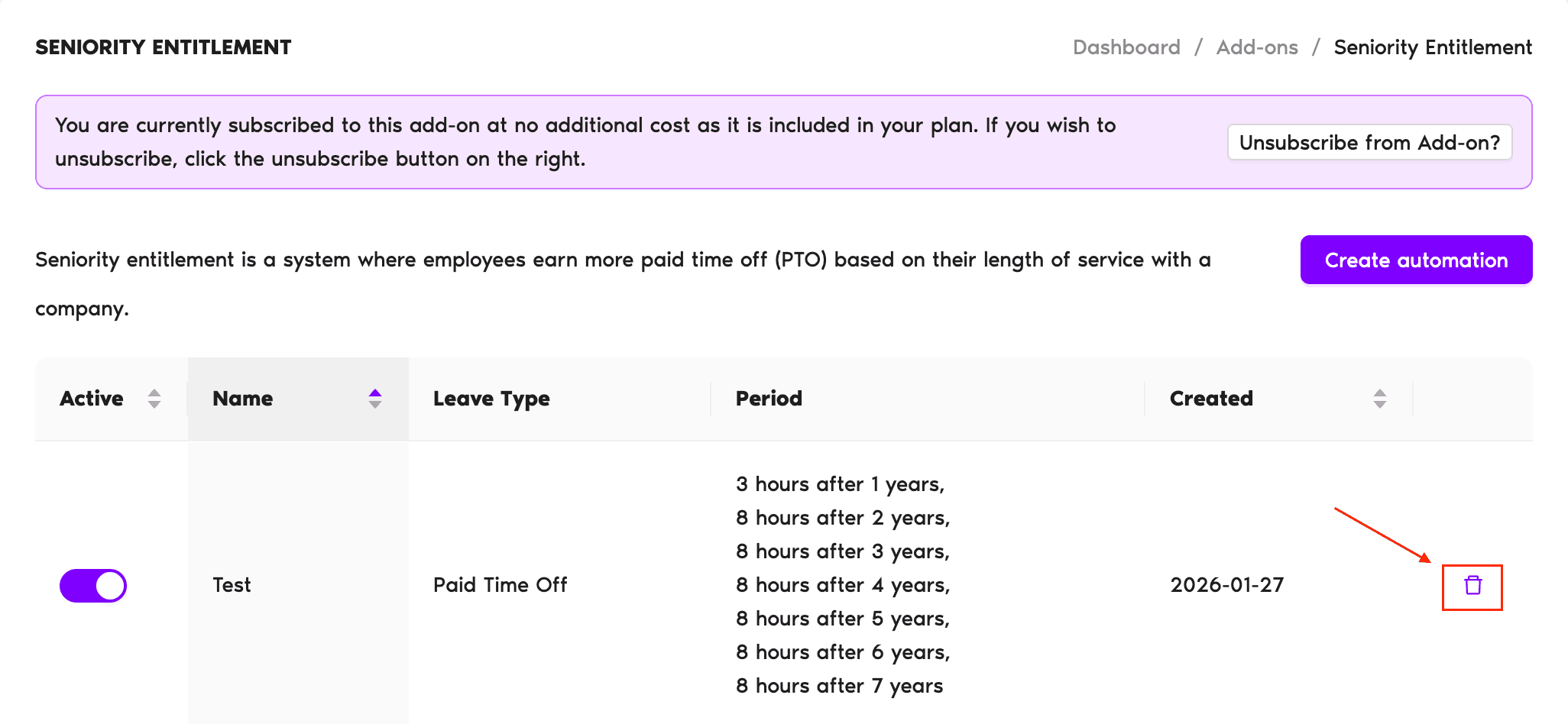
You will have to confirm that you actually want to delete the already created automation.
There will be two options presented, where you need to decide if you would like to keep those awarded days.
Yes - This option will keep all added days / hours from the Seniority Entitlement.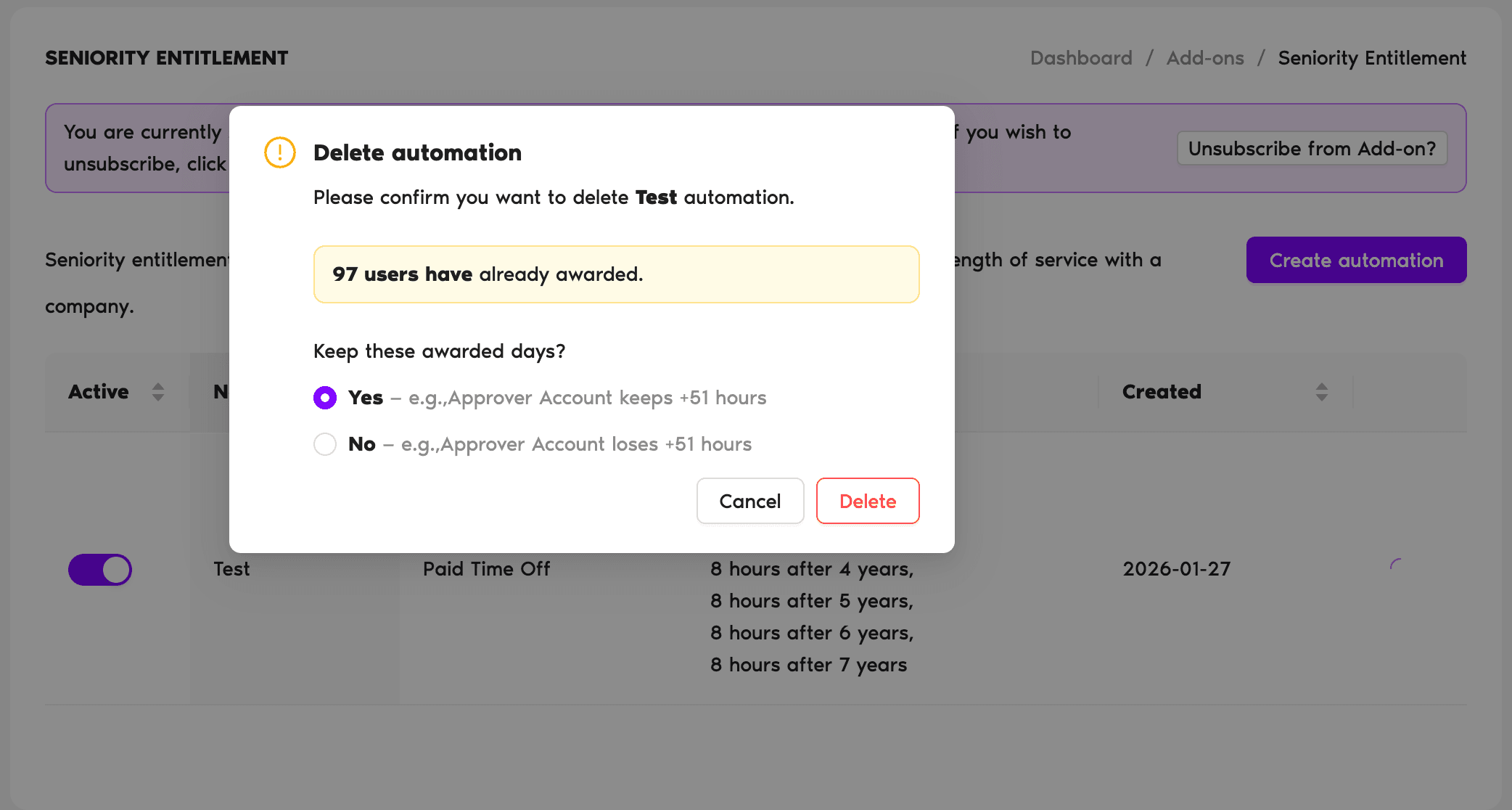
When you open Reports > Company Audit Logs you will see that the awarded days have been kept.

Note: Keeping days for Users can be useful if your policy for Seniority Entitlement changed, where old Users should keep the automation and awarded days, but new Users should have a different policy.
No - This option will remove all added days / hours from the Seniority Entitlement.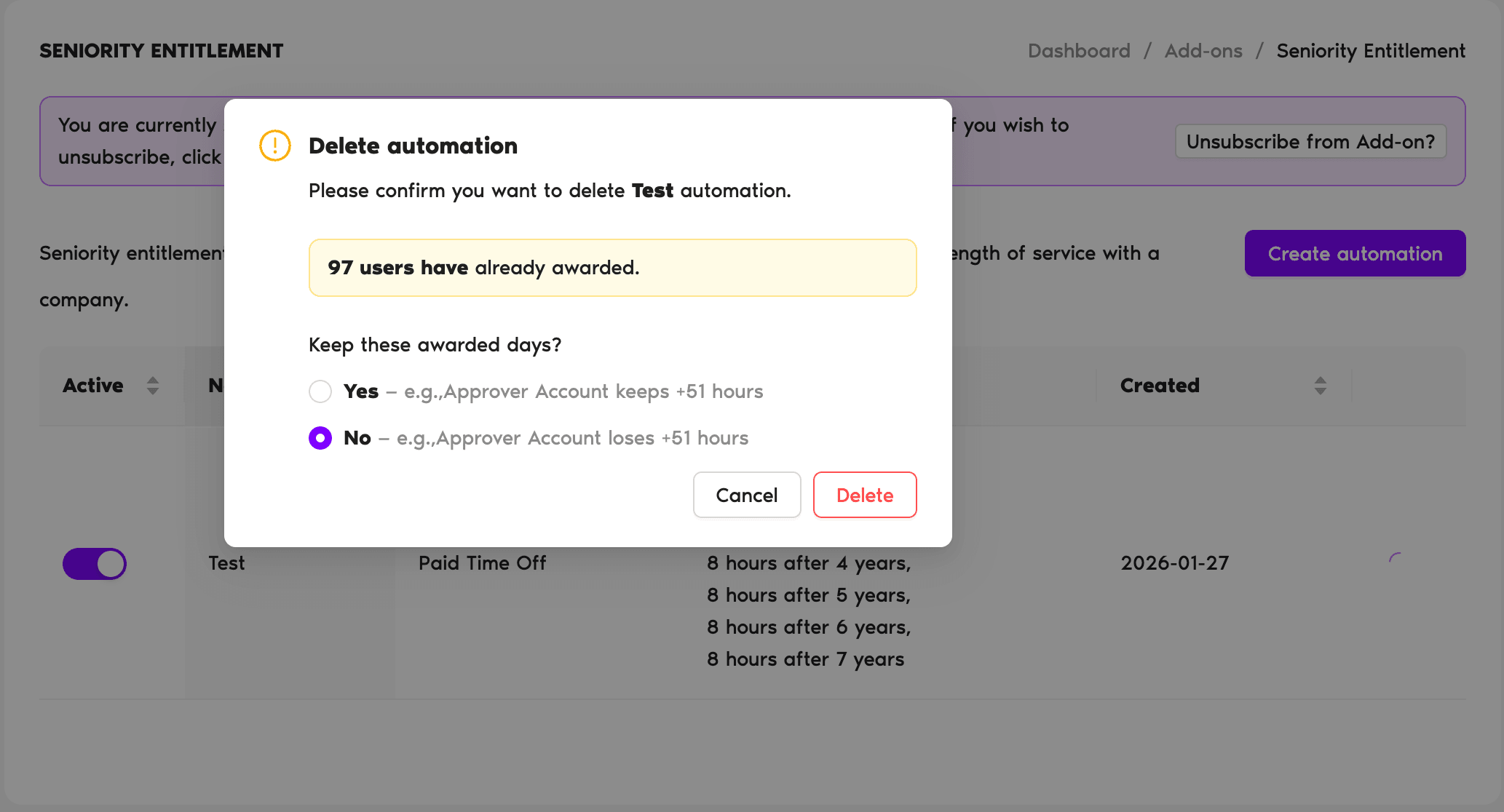
When you open Reports > Company Audit Logs you will see that the awarded days have deleted.

If you just created the automation and the small bin on the right-hand side is grayed out, this means that the currently created Seniority Entitlement still hasn't applied to your account completely, and it will take a few moments to apply. You will see the following message:
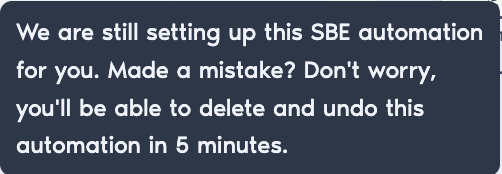
Once the automation is done applying to everyone in the background, the small bin will be clickable.
To create a new Seniority Entitlement, please refer to the following Helpdesk article: How Do I Set Up Seniority Base Entitlement (SBE) Automation?
 Book a Call