
Last updated on January 23, 2026
How Do I Set a Custom Work Week?
Some or all of your users may have a custom schedule (instead of the usual 8 hours a day; Monday to Friday), which means you may need to customize their working week(s). You can do so by customizing the working week and even their working day length.
To customize both the working week schedule (Monday to Sunday) and the workday length (number of hours worked) for each user, please use the following steps: How Do I Set a Custom Workday Schedule?
If you’d like to solely customize a user’s working week (Monday to Sunday), please use the following steps:
Step 1: Go to the Vacation Tracker Dashboard - https://app.vacationtracker.io/signin
Step 2: On the left-hand side of the dashboard, click on Users.
Step 3: Once the page opens, click on the user’s name or picture to enter their profile.
Step 4: On the user’s profile scroll down to the Working Days section and click on Edit on the top right-hand corner of the section.
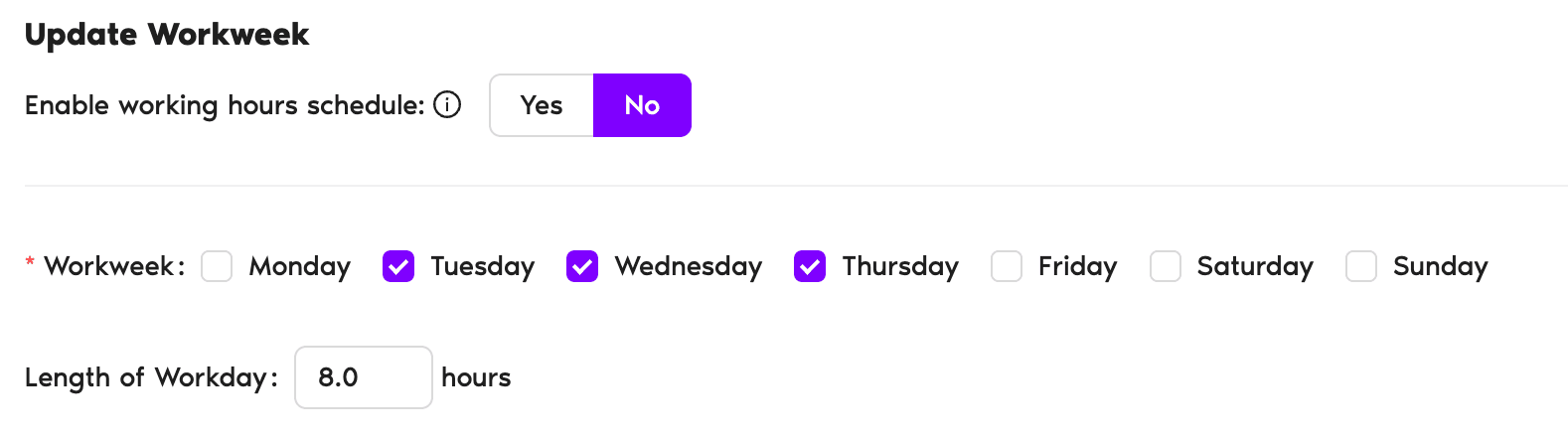
Step 5: A new pop-up will open where you will be able to edit the workweek and set the working days for that user.
Example: In the case shown below, Jean is very lucky to have Monday and Friday off along with the weekend! So we only check-mark Tuesday, Wednesday and Thursday as her working days.
Step 6: If you are only looking to only edit the working week, you can click on Update and you are done!
 Book a Call