
Last updated on February 13, 2026
How Do I Add TOIL for a User?
With Time Off In Lieu, you can either allow your Users to request the time they worked or add that time yourself.
| To learn how TOIL settings can be set up or edited, you can check this Helpdesk article: How Do I Enable / Configure TOIL?
In this article, we’re explaining how Admins and Approvers can add TOIL for their Users.
Let’s begin!
Go to app.vacationtracker.io/signin to log in to the online dashboard
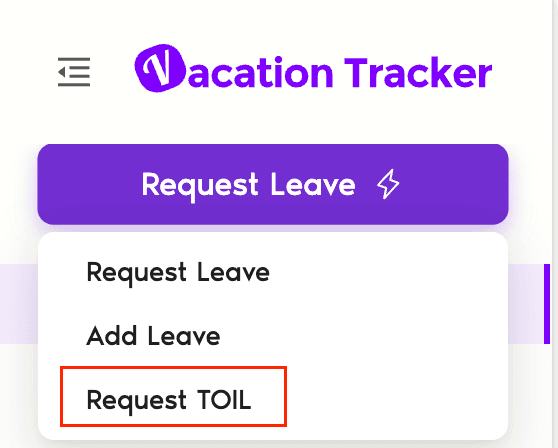
Select Request Leave in the top left corner and go to Request TOIL
Select the User you want to add TOIL for
Choose a Leave Type
Enter the Start and End Date
|| You can only enter the dates in the past including today as the User should have worked the hours already
If you allow half-day or hourly TOIL, you’ll have an option to tick a checkbox when you select the leave type. You should then select the date and the time the User worked. 
- Enter the Reason
We’ve prefilled this field for you, but you can edit it or add more details.
- Click Add TOIL

The amount of days or hours you entered will then automatically be added to the Users quota for that leave type.


| You can find more information about TOIL and how it can be used here: Guide: TOIL (Time Off in Lieu) / COMP Time (Compensatory Time)
| If you’d like to learn how you can request TOIL for yourself, you can find the instructions here: How Do I Request TOIL (Time Off in Lieu)/Comp Time?
 Book a Call